Like Documents, Pictures provides a list of options for each document you save.
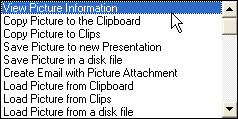
You can "View Picture Information" including the fire department, create date and create time as well as a description of the picture.
You can "Copy Picture to the Clipboard" for pasting into a Microsoft Office document, for example.
You can also use "Copy Picture to Clips" to "stage" the image for later document pasting.
Because NFIRS 5 Alive Presentations support pictures, you can copy a picture as a Presentation record for a slide show. Use the "Save Picture to New Presentation" option.
Pictures can be converted to disk files by selecting the "Save Picture in Disk File" option. You will be able to select a folder destination and name for your new picture document.
If you wish to send a picture to a colleague in your professional network select the "Create Email with Picture Attachment" option. You will be prompted for a file name and folder destination while it allows you to enter email information in the NFIRS 5 Alive email dialog.
You may load pictures from three locations using the "Load Picture from Clipboard", "Load Picture from Clips" and "Load Picture from Disk File" options.
You may also view pictures using the "View Clipboard" or "View Clips" options. Or, view saved picture documents using the "View Disk Files" option.