Every Microsoft Windows operating system comes with tools for repairing and defragmenting the hard drive. These tools need to be run periodically to keep the operating system running a peak performance. The same is true for NFIRS 5 Alive.
NFIRS 5 Alive has a software Tool package which can be downloaded from the web site: www.nfirs5.com. Once downloaded to your hard disk double-click on the "Setup.exe" file to start the installation process. This process will create a "Tools" folder which you should install into your "Program Files" folder. After installation move the Tools folder into the N5Alive folder.
The most common use for Tools is for periodically "compacting" the data file. NFIRS 5 Alive users do a lot of record importing which doesn't always save new records with optimal efficiency. Compacting with Tools will reorganize data and making sure records are stored for optimal performance.
If a problem does appear, it can generally be repaired with Tool's "Check & Repair" function. If a problem is persistent or involves a corrupt record index then it's best to run "Recover by Tags".
Here's how to start 4D Tools:
1. Quit NFIRS 5 Alive.
2. Double-click on the Tools folder to open it. Double-click on the 4D Tools executable
in the Tools folder to start the application.
3. A windows file navigation box will appear. At the bottom of the Open dialog in the "Files of Type" Field area select "Compiled database" from the pop-up field.
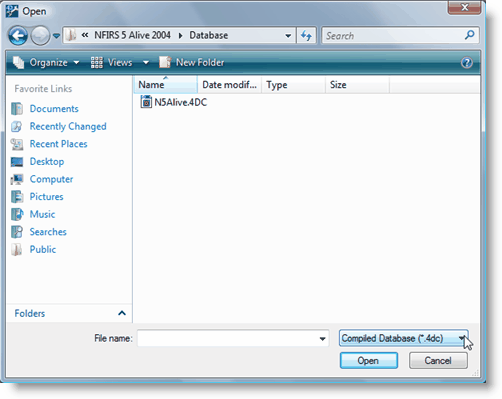
4. At the top of the Open dialog navigate to the N5Alive folder using the drop-down options in the "Look in:" field. You want to look into the "N5Alive" folder wherever you have installed it. Now open the "Database" folder inside the N5Alive folder.
5. Double-click on the "N5Alive.4dc" file. This is the database "structure" file. While this file is not rebuilt it does know where the "data" file (N5Alive.4dd) is located and will automatically match-up the selected structure file with the correct data file.
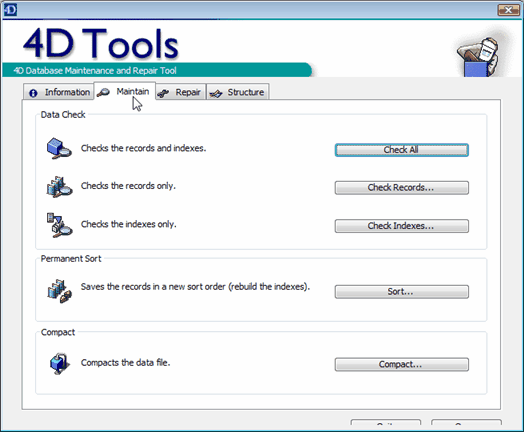
6. The next picture shows 4D Tools with an open structure file. Click on the "Maintain" tab. The "Compact" button is used for "defragmenting" the data file and should be used periodically (about once a quarter) to keep the data file well tuned. The "Data Check" area is used to repair the data file should problems occur during reporting and searching.